



Most OpenCart Theme installation is the same, but have in mind that some could be different.
Theme Installation
Before you install theme:
- Read our complete instruction to install theme.
- Make sure you have installed and running the correct version of OpenCart: OpenCart 2.x.
- Take a FULL BACKUP for your site.
Steps to install Pav StyleShop Theme manually:
Step 1 - Unzip the theme package.
After unzip the download package, please unzip the theme package - pav_styleshop_themes_unzip.zip.
Step 2 - Upload theme to your OpenCart site root directory.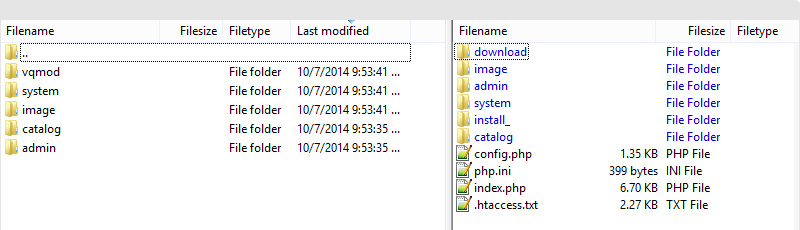
Module Installation
Step 1 - Unzip the module package.
Step 2 - Upload the folder admin, catalog,... in the Module package that you want to install to the root directory of your OpenCart site.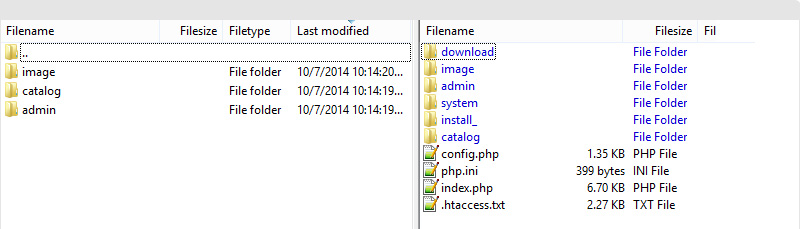
Step 3 - When you install StyleShop theme manually, please unzip the Quickstart file:pav_styleshop_full\pav_styleshop_quickstart.zip\image. Then go to image folder and copy to theme folder.
Step 4 - After uploading all the folders, you can install it as Quickstart installation.
Step 5 - Go to your OpenCart site admin panel, navigate to: Extensions → Modules, find the module you just uploaded then hit the "Install" button to proceed with the module installation.
--------------------------------------------------
Active Theme
Once the theme is uploaded, access your admin panel, navigate to: Admin > System > Settings, select Store > Edit.